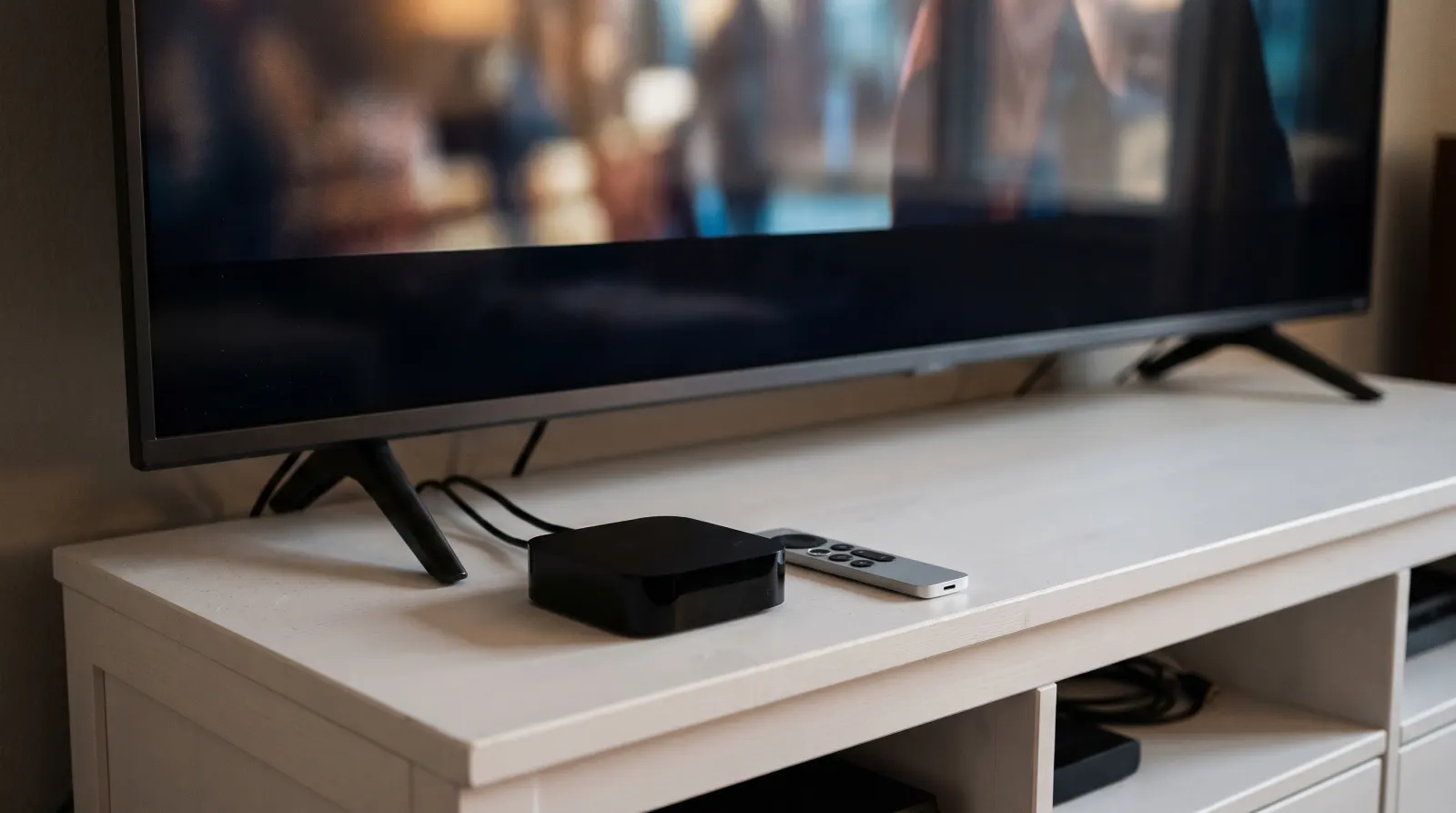
IPTV for Apple TV starts with the box connected to your television. Pick a familiar show and keep the Apple TV remote nearby. A phone can help you enter text, but run the viewing tests with the remote you expect to use every evening. That is how you find out whether the setup suits the household.
On this page 7 sections
Apple TV can mean two different things
The Apple TV app on a television is not the same as an Apple TV streaming box connected by HDMI. If you have only the app, give support the television’s brand and model. If you have the box, note the model and tvOS version shown in Settings.
Choose a player for that box
Check your device’s App Store for the named player and verify its publisher. Ask whether the player has an independent purchase or subscription and which login format it accepts. Do not buy an unfamiliar app solely because its name includes “IPTV.” The Apple TV User Guide is the place to check controls for your software version.
Trying IPTV for Apple TV with the remote
For IPTV for Apple TV, a working picture is only half the test. Can another viewer get back to the same station without help?
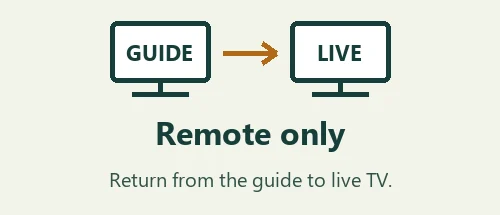
- Open the guide, navigate three rows and return to live playback without touching your phone.
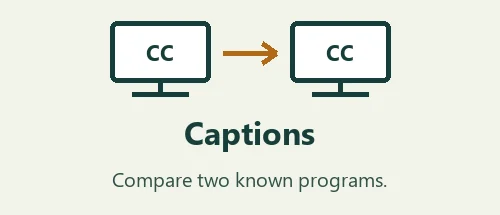
- Compare captions on two programs; a single show without captions does not prove the setting is broken.
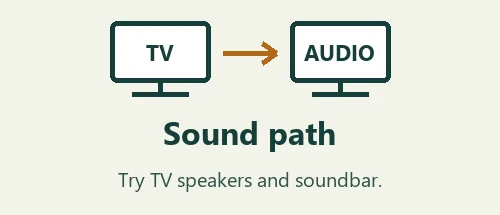
- Wake the box after sleep and check whether the app remembers the last station. If audio fails only through a soundbar, also try the TV speakers before changing the account.
Find the fault before resetting the box
- The Apple TV app is on my smart TV, but I have no box
- Use the guide for the TV itself. Samsung and LG webOS have their own app catalogs; a tvOS App Store listing does not confirm either TV can run that player.
- The player opens but the remote cannot get back to live TV
- Try the same back action in a different app. If it works there, note which player screen trapped you. Do not erase the box before checking the player’s navigation.
- Dialogue is missing but the picture looks fine
- Play the same program using the built-in TV speakers and then your usual sound system. Tell support which path failed and whether a second station behaved the same way.
How to test IPTV for Apple TV from the couch
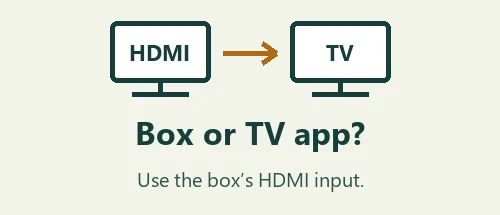
First identify which device is drawing the screen. Turn on the Apple TV box and note the HDMI input shown by the television. Open the box’s Settings and read the model information there. If pressing Home always takes you to a Samsung, LG or Google TV menu, check which remote you picked up before looking for a tvOS app.
In the store, compare the player’s full name, publisher and any in-app purchase with the information you received. A player purchase may unlock the app only. Before paying, ask whether the trial uses the same app and sign-in method as a paid term. Save the name of the listing so another person does not pick a lookalike later.
With IPTV for Apple TV open, start a program you know has captions. Turn them on, change channels and return. Record which program you tested and whether the setting followed you. If one show has captions and the next does not, that observation is more useful to support than a general report that captions are broken.
For a sound problem, leave the station playing and compare the TV speakers with the usual receiver or soundbar. Keep the volume low when switching. If the same audio is missing from both outputs, try one other station. Record whether the issue followed a station or an output before making changes to the box.
Finish by putting the box to sleep and waking it with the same remote. Can another person get back to live TV without reaching for your phone? If they need a different button or input, write that step down. Take the first-evening checklist with you to compare a second test under the same conditions.
A worked example for IPTV for Apple TV
Suppose a family member opens a news program and sees the picture, but speech is missing. First confirm which device is playing. Bring up the box’s own Home screen with its remote and reopen the player there. This matters in a room with a smart TV, an Apple TV box and a soundbar, because each of them can show a menu while a different device handles the sound.
Leave the program playing and lower the volume before changing outputs. Try the television’s speakers and listen for the same person speaking. If dialogue returns there, note the output that worked and the one that did not. If the TV speakers are silent too, choose another station with a presenter. A quiet scene, silent camera shot or music break is a poor sample for a speech test.
Now repeat the first station with the same output that worked on station two. This short sequence creates a useful comparison: same box, same remote, same connection, one changed station. Write down the order of the results instead of making several changes in the sound settings at once. If the picture also freezes, record that separately from the audio result.
For captions, choose a different program that you know offers them. Open the player’s controls, select the option and return to live viewing. Exit to the Apple TV Home screen, reopen the player and check again. You may find that captions work but their setting needs to be reselected. That is worth knowing before a family member relies on them for an evening show.
When comparing IPTV for Apple TV players, run this exact sequence in the player you intend to use long term. A trial on a phone cannot answer whether the physical remote can reach the audio, caption or guide controls. Write down those menu labels so someone else can reproduce a failure without access to the original viewer’s phone.
A clear support note names the box, player, station, local time, selected output and one working comparison. Keep it to observations. The person reading it can then ask about the relevant part of the setup without starting from the assumption that the entire subscription has stopped working.
Questions before choosing a plan
Which Apple TV setup should I describe when asking for support?
Start with the Apple TV box model, then describe what the remote controls and how the picture reaches the television. For example, say that the Apple TV box connects to the television by HDMI and the sound normally goes to a soundbar. Add the player name and the part of the route that worked. If the menus you see actually belong to a smart television, give its brand instead. A person helping remotely can rule out several wrong instructions just by knowing where the app runs and where the sound comes out.
How can two people compare players fairly?
Choose one station and give both players the same task: locate it in the guide, start playback, show captions, change channel and return. Use the same remote from the same seat. Each viewer can note which actions they completed without help, where they pressed Back more than once and whether the guide selection was easy to see. Keep the price of the player separate from the result. Paying for an app does not tell you whether its navigation suits the person who will use it every day.
Is there a way to test the guide without waiting for an entire show?
Look at the entry for the program currently playing and the entry immediately after it. Compare them with a station schedule that gives the same local time zone. Watch one program change if the trial window allows it. If the title changes in the guide but the feed plays a different program, record both observations. If the program is right but the time is consistently shifted, check the device clock before changing any login details. A short sample can establish a mismatch without diagnosing its cause.
What if everything works until someone else uses the remote?
Ask the second viewer to start from the television being off. Observe whether the input returns to the Apple TV box, whether the player opens and whether the viewer can select their usual station. If a universal remote is used day to day, repeat the test with that remote. Note which action is missing rather than assuming the new viewer needs a different service. An easy fix might be a clearer starting instruction, while an unreachable guide action deserves a direct question about the player.
What should I keep after a successful trial?
Keep the box model, the exact player listing and a short note about the station and features tested. Keep private credentials separately. Before moving from a trial to a paid term, ask which login details will carry over and whether the player will need a new profile. IPTV for Apple TV may be easy to reopen during a trial yet require a different account setup afterward. Knowing that in advance makes it easier to distinguish activation instructions from an unexpected playback failure.