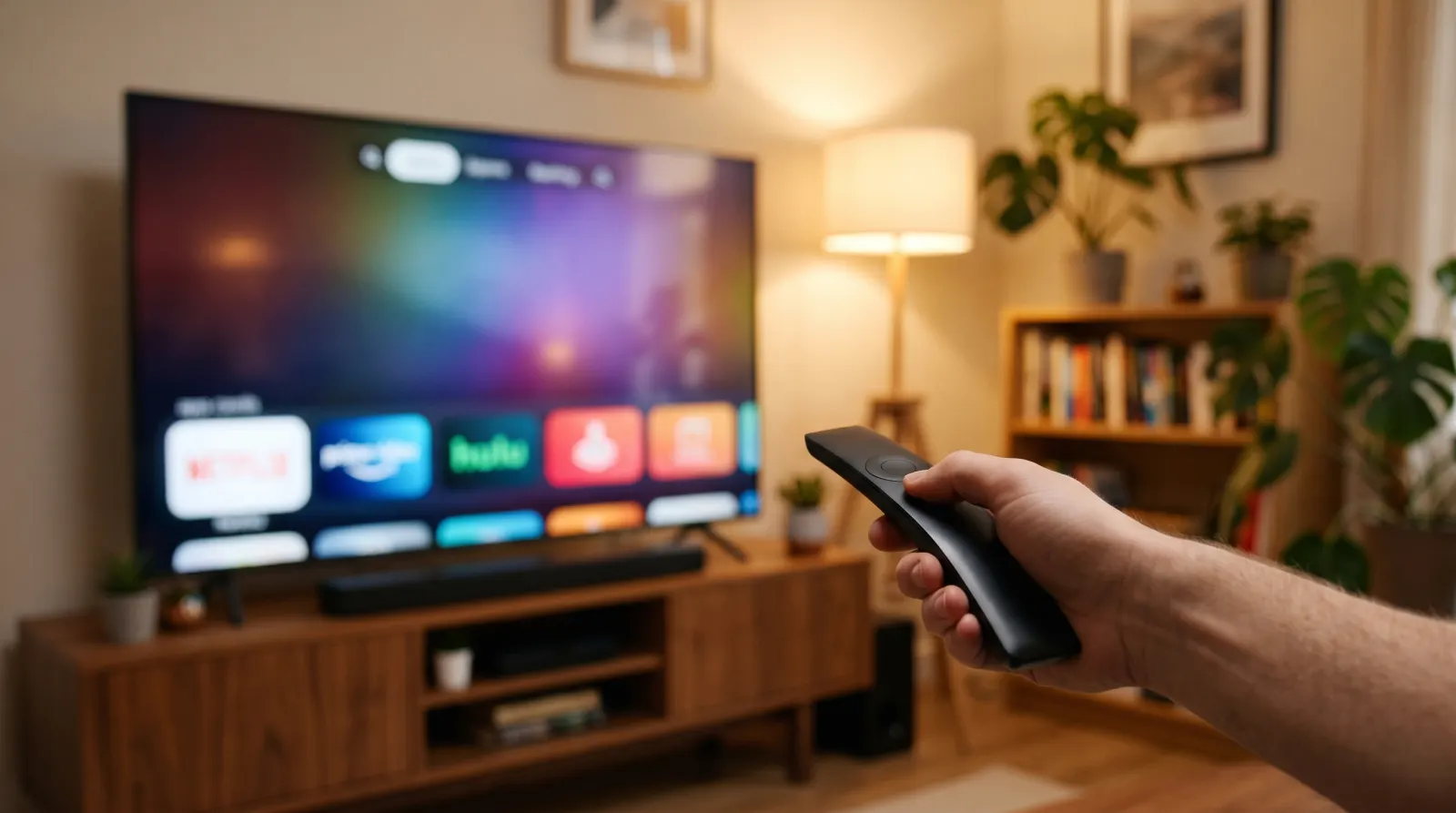
For IPTV on LG webOS TV, use the LG remote to open the television’s own Home menu. Decide which player and station you want to check before spending money on an app. If another device normally supplies the picture, write down the current HDMI input so you can return to your usual setup afterward.
On this page 7 sections
Use the remote for the LG TV itself. If the home screen comes from an HDMI stick, switch back to the LG home screen before searching. The store on a connected device has a different catalog.
Look in Apps or LG Content Store
Use the Home menu and open Apps or LG Content Store, depending on the TV. Search for the player named in your setup instructions. Match its publisher and check any separate app fee. If there is no result, record the model and webOS version rather than assuming that the service login is broken.
Check the login format before entering it
Some players ask for a playlist address; others have separate account fields. Ask support which screen to use. Treat playlist links like passwords: do not post them or include them in a photo of the TV.
Returning to live IPTV on LG webOS TV
For IPTV on LG webOS TV, note whether Home returns you to the television menu or just the player’s opening screen. The recovery steps differ.
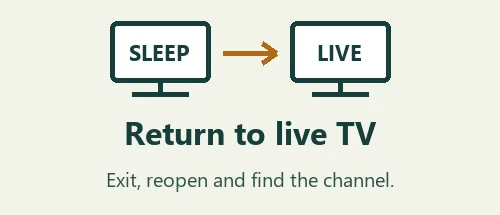
Start a station, move several rows down the program guide, then return to live TV with the remote. Close and reopen the player to check that the station list is still there. Try a second station before attributing a problem to the TV.
If your setup looks different
- Other apps work; this player is missing
- Check availability for the actual TV model. A listing for a newer webOS television is not conclusive.
- The guide loads but a station shows the wrong city
- Keep the local time and station ID; use the station check to verify that specific feed.
For the menus on your TV, see LG’s guide to the webOS Content Store.
Check IPTV on LG webOS TV with the household remote
Read the LG model name and software version on the television. If the menu labels differ from a guide written for another generation, use the official LG support instructions for your set. The physical size of the screen does not identify the software or the apps offered in its store.
Open Apps or LG Content Store from Home. Search for the exact player and compare its publisher, not just the icon. If you find no match, record the model, store search term and country setting as shown. Ask whether there is a compatible alternative before paying for a different player with a similar name.
When testing IPTV on LG webOS TV, look at the sign-in form before entering anything. An app can ask for a playlist address or separate account fields. Ask support which option matches your trial. Never send a full photo of a QR code, playlist address or credentials to explain which screen appeared.
Try navigating with the directional buttons even if you usually use the remote’s pointer. Open the guide, move a few rows, choose a program and find your way back to the channel list. Ask someone else at home to repeat it. If they lose their place, note the menu label where the route became unclear.
After the first session, close the app and reopen it from Home. If the station list returns but the guide looks empty, test another station and note the local time. If both the app and guide fail, try another TV app on the same connection. The first-evening viewing checklist gives you a place to mark the tests you completed.
A viewing example for IPTV on LG webOS TV
Imagine the LG television is normally used with a streaming stick. You press Home on the stick remote, search for the named player and find a listing immediately. That result belongs to the stick’s store. To test the television’s built-in app, pick up the LG remote, open LG Home and look for Apps or LG Content Store there. Make a note of which route you intend to keep using.
If the built-in store shows a player, match the full written name and publisher. Read the listing on that television before buying a license elsewhere. If the listing is missing, record the model, the webOS version and the search spelling. Sharing these three details is usually clearer than telling support that every LG television is incompatible.
At the sign-in screen, read the labels before typing. If you were given a playlist address but see separate fields for a server and account name, ask for the intended mode. If you need to send a picture for support, use a screen with empty fields. Addresses, QR codes and credentials can all expose account details even when a password field looks hidden.
During an authorized trial, select a familiar station, open the guide and move several rows away. Choose another station, return to the original one and then exit to LG Home. Reopen the same player. Write down whether the profile, station list and guide position return. The player can remember one of these things while losing another, so test them separately.
When comparing players for IPTV on LG webOS TV, repeat that route with the remote the household usually uses. If a pointer works but the directional controls cannot reach an important menu option, note it before deciding. That distinction can matter more in daily use than how quickly the first channel appeared.
If the program returns with the right picture and the wrong guide title, note both titles and the local time. If the app will not open at all, record the last Home menu step instead. Those two reports describe different problems and give support a much better starting point.
Questions before choosing a plan
What does a working app on another LG television tell me?
It tells you that the player worked on that particular model in its store and account setup. Compare the model and webOS version before assuming your television offers the same listing. Two sets purchased in different years can look similar from the sofa. Use the LG remote to open your own Home menu and search there. If the player is unavailable, record the search result before asking whether another supported player exists. There is no benefit in buying an app for a different device until you know which route you will use.
How can I tell whether a blank guide is actually a blank channel list?
Try navigating to the station list with the LG remote and look for station names. If names appear and a station plays, the live feed is present even if the time-based program guide is empty. If there are no station names, the player may not have loaded the account or playlist information. Describe what you can see and what you can open. A guide with no program titles, a list with no station names and a station with no picture are three distinct observations that support can investigate.
What should I check before removing and reinstalling a player?
Make sure you still have the original setup instructions privately and know whether the player has its own license or activation step. Write down its exact name and the model of the TV. If possible, reproduce the issue once after closing and reopening just the app. Removing it may erase a profile, favorites or other local settings. If support asks for a reinstall, clarify which details you will need afterward and where to enter them, without sending activation codes or credentials in a public message.
How do I test the setup for someone who does not use the pointer?
Let the viewer start from LG Home and use the directional controls on their own LG remote. Ask them to reach a familiar station, open the guide, choose another station and come back. If they cannot see which row is selected from their usual seat, note the screen and action. If they can move through the guide but cannot return to playback, note the particular button and the menu it opened. This is a test of everyday navigation and accessibility, separate from whether the video started quickly the first time.
What should I ask after a successful first session?
Ask whether the same player and sign-in method will be used after the trial and whether any separate player charge is due later. If IPTV on LG webOS TV worked on one television, mention the tested model when asking about another set. The answer for a second television needs to address its own app compatibility and the number of simultaneous streams if both will be used together. Keep those two questions separate so a positive answer about the player is not mistaken for permission to watch two streams.