To test IPTV on Google TV, decide whether you want a player installed on the television or a stream cast from a phone. This guide follows the installed-player route. Keep the TV remote in hand and pick a station you know, so you can repeat the same test without using the phone as a controller.
On this page 7 sections
Casting a video from your phone and opening an installed TV app are different workflows. If you want to watch with the remote alone, run this check on Google TV itself.
Find the TV version of the player
From Google TV, search for the exact app or open the Apps tab. Check the publisher and whether an Install option appears on this device. A phone app in the Play Store does not by itself confirm a TV version. If you are on a restricted profile, use the appropriate household profile with permission.
Confirm what the player expects
Open the player and read its sign-in field labels before typing. Confirm the expected login format and any separate player license with support. Never paste credentials into a search box or send an uncropped login screenshot.
Launching IPTV on Google TV with the remote
Before trying IPTV on Google TV, disconnect any active casting session. That way, starting a program from the remote tests the installed player.
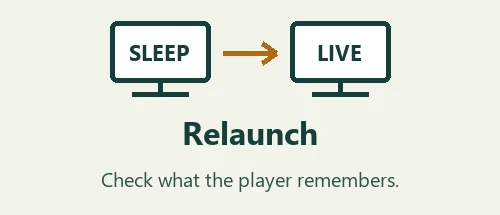
Start a station, change to another, return to the guide and exit the app. Relaunch it with the remote, without casting from the phone. Note whether the app, station list and last channel return; those are three distinct checks.
If your setup looks different
- Phone casting works; the TV app does not
- Record both the TV model and player name. A successful cast confirms only the casting route.
- The test works on one set but not both at once
- Check the number of simultaneous streams in your offer. Use the two-screen guide before paying for a second player.
For the menus on your TV, see Google TV’s official app installation steps.
Run IPTV on Google TV without reaching for your phone
Read the device name shown in Settings and note whether Google TV is built into the screen or comes from an HDMI device. If there are several profiles, use the household profile authorized to install apps. Record where you started so you can reproduce a missing-app result without changing another person’s settings.
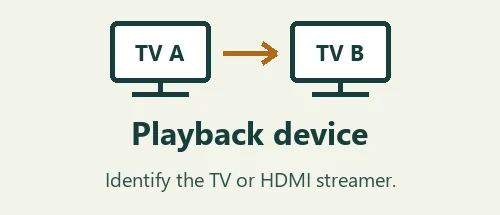
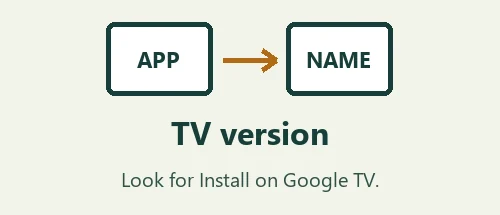
Search from Google TV itself. Match the listing’s name and publisher with the instructions from your provider, then check whether this device offers an Install option. Finding an app on an Android phone is not enough. If no TV listing appears, give support the model and exact search term before trying another app.
After opening the player, compare its account fields with the login format you received. A playlist address belongs in the player field intended for it, not in the Google TV search bar. If the screen instead asks for a server and two account fields, confirm which mode is intended before entering private details.
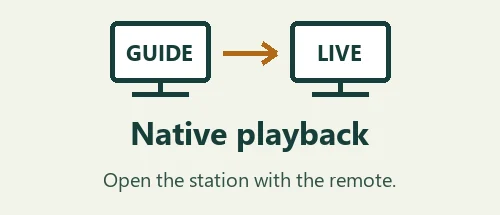
Try IPTV on Google TV from a cold start: put the phone aside, open the player with the remote, then find the station from the guide. Switch to a different station and return. If playback works only after touching a cast button on your phone, you have tested casting rather than the route another person can follow with the remote.
Finally, leave the player and reopen it from the Apps list. Check whether the channel list, guide position and caption setting return as you expected. If one piece is lost, state which piece when asking for help. The viewing checklist helps distinguish an app navigation issue from a station that never opened.
A worked example for IPTV on Google TV
Imagine the game plays when someone casts from a phone, yet another viewer cannot start it when the phone leaves the house. Begin on the Google TV Home screen with the remote alone. Open the Apps list and look for the player that was supposed to be installed. A cast session can put video on the screen without demonstrating that a TV player was installed or signed in.
If a player is present, open it directly and inspect the first screen. Does it show a station list, an account selection or a blank sign-in form? Record that exact state. A player profile that has not been configured needs a different answer from a player that shows the whole guide but cannot start one live channel.
Next try a channel that the household can recognize. Back out to the guide, choose another station and return to the first. Keep the phone aside throughout. Then exit the player and launch it a second time from Apps. A successful relaunch shows whether the next person can reproduce the route without a notification or cast control from somebody else’s device.
If the player does not appear under a second Google TV profile, write down which profile was used for the test and the model of the device. Check with the person who manages that profile before changing a restriction or installing another app. Safe household settings should stay in place while support determines which permitted setup is appropriate.
To evaluate IPTV on Google TV for everyday use, test at the time you normally watch. Notice how you return from the program guide to live television, whether captions persist on the program you selected, and how easily a second viewer can find the same station. One fast start from a phone does not answer these remote-control questions.
When you request support, describe the path briefly: “casting from my phone played the station; opening the installed app with the TV remote showed an empty guide.” Add the player name, model and local time. That report lets support investigate the installed-app route without treating a working cast as evidence that both routes are configured.
Questions before choosing a plan
What if the app is on my phone but I cannot find it on the TV?
Search from the Google TV Apps tab with the TV remote while using the appropriate household profile. Compare the exact player name and publisher. A mobile listing may be designed for touch controls or may not offer a version for your playback device. If the television returns no match, write down its model and the search words. Ask the provider which player it supports on that device. Waiting for a compatible answer is preferable to paying for a phone app that does not solve the living-room viewing requirement.
How can I test whether playback depends on somebody’s phone?
Begin while no one is casting. Use the TV remote to open the installed player and select a station from its own guide. Move to a second station without reaching for the phone. Then go to Google TV Home and repeat from the Apps list. If the stream can only be started by casting from one person’s device, document that route clearly. It may suit a single viewer, but another member of the household cannot rely on a phone that leaves for work each morning.
How do I compare stations when one app has a different guide layout?
Use the station name or call sign rather than the row number in the guide. Pick two recognizable stations and note how you reached each one with the TV remote. A favorites list, search result or category can place the same feed in different positions. Compare the program on screen and its local time as well as the label. If the labels match but one player shows a different city’s news, record that distinction instead of treating a similar-looking guide as proof that both feeds are identical.
What happens if a child normally uses a restricted profile?
Ask the household account manager which profile and player are appropriate for the intended viewer. Conduct any allowed installation or trial in the agreed profile, then check whether the viewing route is available under the settings the family wants to keep. Avoid changing restrictions just to make a search result appear. If the player works only under a different approved profile, include that limitation in the buying decision. An app that technically runs on the television may still be impractical for the person who will use the TV remote.
What should the final support message contain?
State how the stream was started, which device is running Google TV, the player name and the last screen that behaved normally. For example, explain that a station opened from the installed player but the guide lost its position after returning to Home. Add the local time and a comparison with one other station. If IPTV on Google TV is being tested in two rooms, identify which room showed the issue and whether both streams were active. Leave passwords, playlist addresses, QR codes and full account screens out of the message.