IPTV for Firestick works only if the player you need runs on the stick plugged into your TV. Before buying a player or choosing a term, pick one local station and one evening program you can recognize. Use them for the checks below so that a successful login actually tells you something about viewing at home.
On this page 7 sections
Why the exact Fire TV Stick matters
“It’s a 4K Stick” is not enough to choose a player. Amazon lists devices running Fire OS as well as newer models running Vega OS. An app guide for one model may not work on the other. On the TV, open Settings → My Fire TV → About and write down the full model name and software version. Compare it with Amazon’s device and OS table.
Check the app before paying
- Search the device’s own store for the exact player named in your confirmation. Check the publisher and any separate license fee.
- Ask what sign-in method the service supplies. An installed player by itself is not a subscription and does not provide the channels.
- If the player is missing, send your model and the store result to support. Skip download codes or files meant for a different platform.
Your first evening with IPTV for Firestick
When comparing IPTV for Firestick players, match the publisher and model before buying a separate app license.
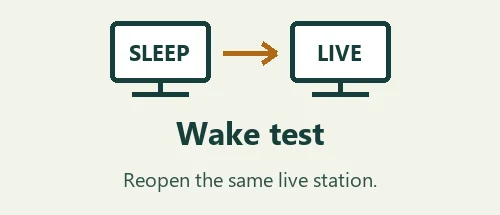
Open two stations in succession, turn captions on, and compare the guide time with your local clock. Put the stick to sleep, wake it and reopen the player. If only one station fails, write down its name and time; if the whole player fails to load, include the app version instead.
If the stick shows a blank screen
- The TV shows “No signal” before the Fire TV menu
- Check the selected HDMI input and the stick’s power first. If you cannot see the Fire TV home screen, changing a subscription or playlist cannot fix that part of the setup.
- The store cannot find the suggested player
- Read back the exact stick model, OS and app publisher to support. Ask for a compatible store listing before installing anything. A matching app name on another Fire TV is not confirmation.
- The player opens but a station fails
- Try a second station, then reopen the first. Note whether a picture, audio or an error message appeared. Share the time and station, not the login screen.
How to test IPTV for Firestick with your own remote
Start with the remote in hand. Take a photo of the model and software information for your own reference, then leave the About screen. Open the stick’s store and type the player name yourself. If two listings look alike, compare their publishers. A photo of just the app name and icon is safe to share when asking which listing is intended.
When the player opens, read the fields it offers before entering anything. A single playlist address and separate server, username and password fields describe different sign-in methods. If your instructions show the other layout, stop at that screen and ask which option to select. Do not put a playlist address into the store’s search bar.
Now try a viewing session with IPTV for Firestick the way you would on an ordinary evening. Use the guide to find the named program, switch to a second station, then go back using only the remote. Write down whether you landed on the channel, the guide or the home screen. Reopening an app icon is a different test from resuming a live channel.
If the trial stalls, change one thing at a time. Check a second station without moving the stick. Then open an unrelated streaming app on the same input and connection. If both apps fail, say so when you ask for help. If only one feed fails, the station and time are more useful than a photo of the spinning circle.
Keep a short note for the next person who uses the TV: the HDMI input, the player’s exact name and where to find the guide. Keep passwords out of that note. If the stick works but two TVs will play at once, use the two-screen guide to check the separate stream requirement.
A worked example for IPTV for Firestick
Imagine the stick plays the evening news until you put the television to sleep. When you switch it on again, you see a black screen. Start by pressing Home on the stick remote. If the Fire TV menu appears, the television is receiving a picture from the stick. If the television instead says there is no signal, check its input selection and the stick’s power connection before opening the player.
Next, launch the player from Home rather than using a recent channel shortcut. Look for the station list. If the list loads, choose a station other than the one that was playing before sleep. Write down whether the new station produces a picture and audio. Then try the original station. This simple order keeps a single unavailable feed from looking like a failed installation.
If the app asks for sign-in again, do not immediately buy another subscription. Note whether the player forgot the entire profile or simply stopped playback. Those symptoms call for different answers. If you still have your original setup instructions, read the type of login they describe before typing anything. A player reinstall could remove the configuration you are trying to inspect.
Repeat the sleep test once under the same conditions. If the problem repeats, a useful report would read: “Fire TV Home opens after wake. The player lists stations. Station A has sound only, station B plays normally. This happened twice around 7 p.m. Eastern.” Use the real station names in a private support request and keep account information out of the message.
If you are deciding whether IPTV for Firestick suits your household, ask someone else to try the same route without coaching. Can they choose the right input, open the correct player and reach the familiar station? Note the first point where they hesitate. Sometimes the practical fix is as small as putting the player in an easier-to-find position on the device, where its software allows that.
Keep the original working setup until the comparison is complete. Make one change only after you have written down what happened. You will be able to tell whether the next test improved playback, changed the navigation, or simply started on a different TV input.
Questions before choosing a plan
Should I test on the living-room stick if I plan to watch in the bedroom?
Use the device and room where the service will actually be used. A TV at the far end of the house may have a different connection, a different generation of stick or a different remote. If moving equipment is inconvenient, do an initial player check in the living room and label the bedroom result as untested. If you do move the same stick, bring its normal power supply and record which room you are testing. That leaves fewer things to account for if playback changes between rooms.
What should I write down if a channel opens slowly?
Separate the time it takes to open the player from the time it takes to tune a channel once the guide is visible. On the first attempt, start timing at the Home screen. On the next attempt, start from the already open guide. Try a second station without changing any settings. An app that is slow to open but changes stations promptly is a different experience from an app that opens instantly and then stalls on every station. Tell support which part of the sequence felt slow.
How do I check whether the guide works for someone else at home?
Give the other person a simple task and avoid pointing out the answer: find tonight’s local news, change the station and return to the news. Watch what the remote actually does. A repeated press may jump several rows when the viewer expected just one. Note any screen where the selection highlight is hard to see from the couch. If the viewer uses captions, ask them to turn captions on themselves. A feature is much less useful if the person who needs it cannot reach it reliably.
Can I keep a trial login and a paid login in the same player?
Ask how the chosen player handles multiple profiles before changing an existing one. If a player allows separate named profiles, choose labels that distinguish the tests without including an email address or password. If it offers only one sign-in, keep the original setup instructions somewhere private before replacing any values. When the trial ends, make sure you know which profile you are opening. An expired trial profile can look like a problem with a new subscription even when the new details have never been entered.
Which result is enough to choose a plan?
Use the reason you wanted IPTV for Firestick in the first place as the decision rule. If it was a particular local show on the bedroom TV, verify that show on that device during the agreed window. If easy navigation matters more, have the usual viewer complete the remote test unaided. Then compare the full-term price with any separate player charge. Keep a short list of unresolved questions and ask for written answers before creating an invoice for a longer term.