On this page 14 sections
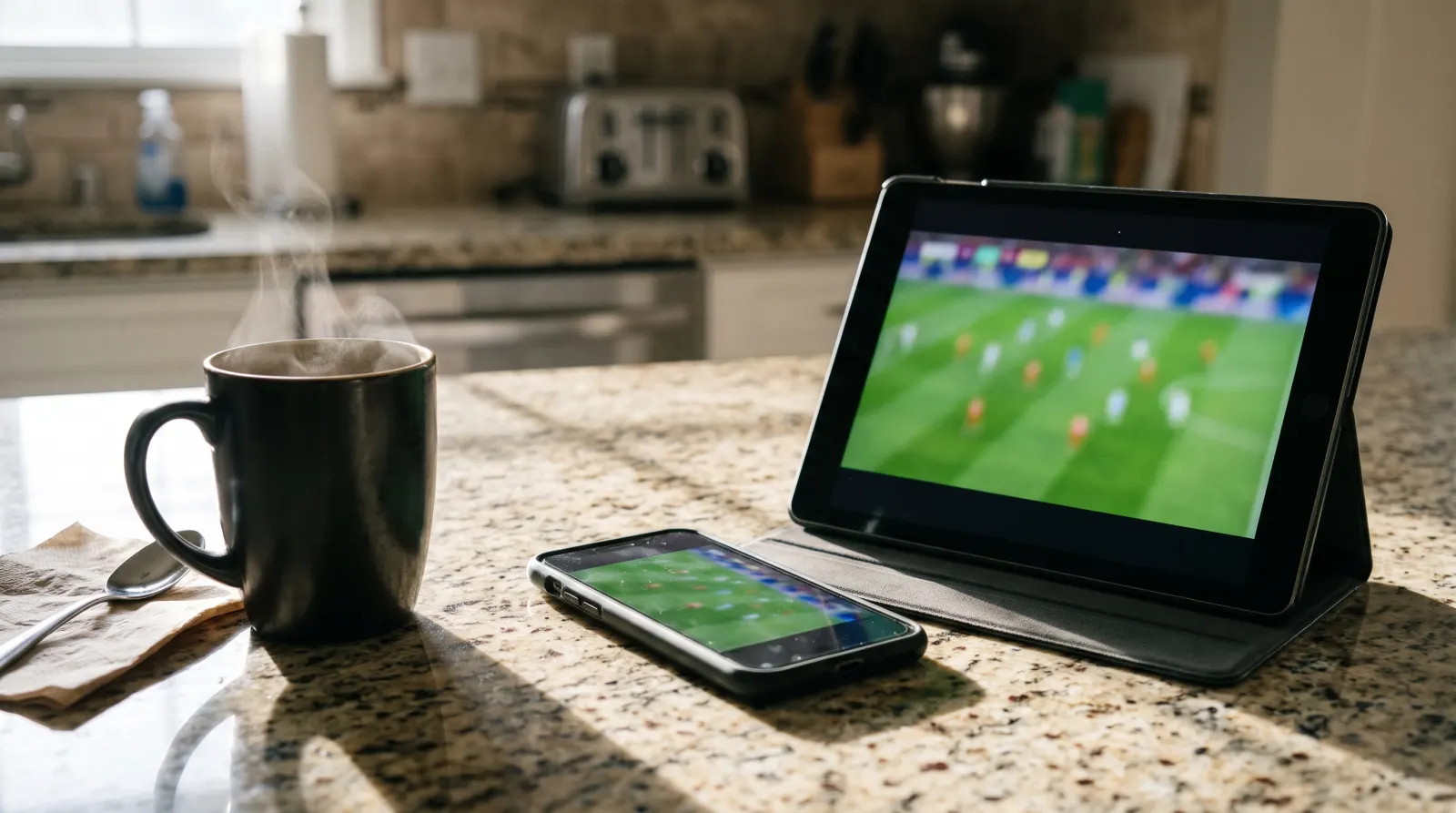
IPTV on iPhone and iPad works through a player app: the app shows live channels, the guide and on-demand titles, but you still need the login details from your trial or plan. This guide covers which app to install, how to sign in, and how to send the picture to your TV with AirPlay.
Install a player from the App Store
Install players only from the App Store. Search for the player name you received with your access, such as IPTV Smarters Pro, and check the developer name on the listing before you tap Get. Avoid apps that promise free channels: a player never includes content by itself.
Some players are free and others charge for a license or remove ads with an in-app purchase. That fee goes to the app developer and is separate from your IPTV plan.
Which player should you choose?
The App Store lists dozens of IPTV players. They all do the same basic job, so choose by how you will watch:
- Same app on iPhone, iPad and Apple TV: IPTV Smarters Pro runs on all three, so your favorites and settings feel the same everywhere.
- Mostly on the TV: if you also own an Apple TV box, install the player there and use the phone only when you are away from the TV. A player on the TV itself is steadier than AirPlay.
- Mostly on the go: pick a player with picture-in-picture and a download-free interface that works well on cellular data.
Check the ratings, the date of the last update and the developer name. A player that has not been updated for a year may not work well with the current iOS version.
Sign in with the details you received
- Xtream Codes API login: the recommended option. Enter any name for the list, then the username, password and server URL exactly as written, including
http://and the port number. - M3U playlist URL: works too, but loading can be slower and the program guide may need a separate EPG link.
Type the details instead of pasting them from a message preview, which can add a hidden space. A capital letter in the wrong place is the most common reason for an “invalid login” error.
Let the first sync finish
After signing in, the app downloads live categories, movies, series and the guide. Keep it open and the screen on for a minute or two. If it stops early, use the app’s refresh option for channels and EPG.
Watch on your TV with AirPlay
With an Apple TV or an AirPlay-compatible smart TV on the same Wi-Fi network, start a channel and tap the AirPlay icon in the player. If the icon is missing, the player may not support AirPlay for live streams. In that case, open Control Center and use Screen Mirroring, or install the player directly on the TV using our Apple TV guide.
AirPlay sends the stream from your phone, so it keeps using one stream. Lock the phone screen only if the player keeps playing in the background; otherwise the TV picture may stop.
Settings worth changing
- Guide time zone: set it to your local time zone so the listings match the clock.
- Stream format: if one station keeps buffering, switch between the formats the player offers, such as HLS or MPEG-TS.
- Cellular data: live TV uses a lot of data. Turn off cellular streaming in the player if your phone plan has a cap.
- Parental controls: lock adult or late-night categories with a PIN if children use the iPad.
Picture-in-picture and background play
Many players support picture-in-picture on iPhone and iPad. Start a channel, then swipe up to go home: the video shrinks into a small window you can move to any corner while you use other apps. If the video stops instead, look for a picture-in-picture switch in the player settings, and check Settings, General, Picture in Picture on the device. On iPad, you can also put the player side by side with another app using Split View.
Watching away from home
Your login works on Wi-Fi and on cellular data, at home or when you travel. Live TV in HD uses roughly 1.5 to 3 GB per hour, so an evening game can use a large part of a monthly data cap. Before you leave:
- Lower the stream quality in the player if it offers a choice.
- Turn off cellular streaming in the player and use hotel or café Wi-Fi when you can.
- Remember that your plan’s screen count still applies: if someone at home is watching on a one-screen plan, your phone cannot play at the same time.
Using one login on several Apple devices
You can add the same login to your iPhone, your iPad and an Apple TV. They can all stay signed in. How many play at once depends on your plan: one screen plays on one device at a time, two screens on two. If the family often watches on the iPad while the TV is on, choose a two-screen plan on the plans page. The multiple devices guide shows how to test this during your trial.
After an iOS or iPadOS update
A major iOS update can change how a player handles background play, AirPlay or picture-in-picture. If something stops working right after an update:
- Open the App Store, tap your profile picture and update the player. Developers often release a fix within days.
- Force-close the player by swiping it away in the app switcher, then open it again.
- Restart the iPhone or iPad. This clears network settings that sometimes stick after an update.
- If channels still will not load, delete the player, reinstall it from the App Store and sign in again with your details.
Setting up an iPad for children
An iPad is often the second screen in a family. Two settings keep it simple and safe:
- In the player: set a parental PIN and lock adult, late-night or news categories you do not want children to browse.
- On the iPad: use Screen Time, under Settings, to limit how long the player can be used each day and to block app purchases inside it.
If a child watches on the iPad while someone else uses the TV, that is two streams at once. Check that your plan covers two screens.
Fixing common problems
“Invalid credentials”
Re-type the username, password and URL by hand. Check for a trailing space and the correct port.
Channels load but will not play
Switch the stream format and try a second station. If only one station fails, send us its name and the local time.
Picture stutters in the evening
Move closer to the router or switch to the 5 GHz Wi-Fi band. Our trial checklist shows what to note for support.
iPhone and iPad questions
Can I watch IPTV on an iPhone?
Yes. Install an IPTV player from the App Store, sign in with the details from your trial or plan and start watching.
Which IPTV app is best for iPhone and iPad?
Choose a player that is updated regularly and supports Xtream Codes login. IPTV Smarters Pro is a common choice because it also runs on Apple TV.
Can I send IPTV from my iPhone to my TV?
Yes, with AirPlay to an Apple TV or an AirPlay-compatible TV, if the player supports it. For everyday viewing, a player installed on the TV is more stable.
Does IPTV on iPhone use a lot of data?
Yes. HD live TV uses roughly 1.5 to 3 GB per hour. Use Wi-Fi when you can, or lower the quality.
Next step
No login yet? Start a free 24-hour trial and set up your iPhone or iPad with this guide. Watching on more than one device at a time? Read IPTV on multiple devices before choosing a plan.