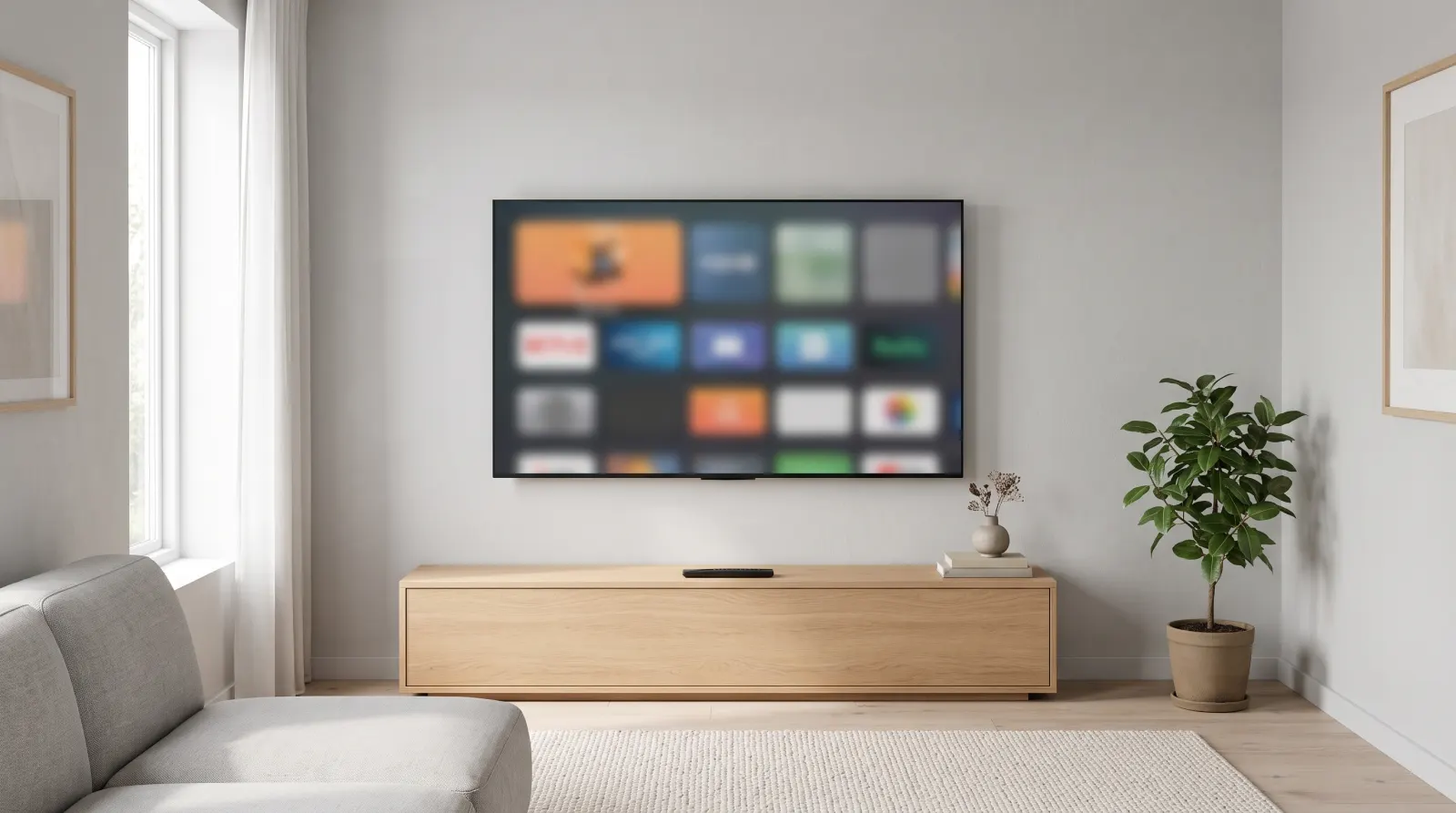
To try IPTV on Samsung Smart TV, start in the television’s own Home menu with the Samsung remote. If you usually switch to a stick on HDMI, decide which device you actually want to test. Even on the same television, the built-in player and an app on a stick use different stores and controls.
On this page 7 sections
Have the TV model code and the name of the recommended player beside you. A listing on someone else’s Samsung TV is a useful lead, but the app search on your own TV is the test that matters.
Find the app on this television
Open Home and look for Apps or Search. Search for the exact player and compare its publisher with the details you received. If you only see a web result or a similarly named app, pause before installing. Menu labels can differ between models.
Separate the player from the subscription
Open the app description and note any price or trial belonging to the player itself. Ask which login method the service supplies. Installing or buying the app does not activate a channel package.
Using the remote with IPTV on Samsung Smart TV
For IPTV on Samsung Smart TV, save the name of the app you found in the TV store. You will need it if you compare two player licenses.
Open a station, return to the guide, switch to a second station and try captions on a program that offers them. Exit to the TV home screen, then open the player again. A working first launch does not tell you whether the guide is usable on the couch.
If your setup looks different
- Player missing from Apps
- Write down the TV model code and the exact search term. Ask about a supported alternative; do not change your store region merely to make a listing appear.
- A different device is plugged into HDMI
- If you normally watch through Fire TV, follow the Fire TV Stick setup guide instead; that device has a different store.
For the menus on your TV, see Samsung’s guide to using TV apps.
Test IPTV on Samsung Smart TV before buying an app
Write the TV’s model code exactly as shown in its support information or on the product label. You need the model code, not the private serial number. Note the app name you were told to find and any publisher name in the instructions. The three pieces make it easier to distinguish an unsupported model from a search spelling problem.
Search inside the TV’s own Apps area. Similar logos are common, so compare the written name and publisher before installing. If the listing asks for payment, pause and ask which part of the setup that payment covers. A separate player license and the subscription term can have different costs and renewal rules.
Once you have the right player, open it before entering any account details. Match the field names to the sign-in method provided. If your instructions give one address and the screen asks for several separate fields, tell support what the screen calls each field. Share only those labels, not your credentials.
To assess IPTV on Samsung Smart TV from the sofa, try returning from a station to the guide using only the original remote. Search for the same station again, then exit to Home and reopen the app. Notice which selection it remembers. Someone who just wants the evening news should be able to repeat that path without your phone.
If only one program is wrong, compare its local time and on-screen station name with the local feed checklist. If the entire app is missing or unusable, keep the model code and search result together instead. These observations let support check the app catalog and the channel feed separately.
A first-night example for IPTV on Samsung Smart TV
Suppose the TV search returns two players with nearly identical names. Before installing either, read the publisher for each listing and write down the one named in your setup instructions. If the instructions include only an icon, ask for the full store name and publisher. An exact match helps avoid paying for an app that cannot use the login format you were given.
After selecting the intended app, look for any price shown by the store or by the player when it first opens. If a purchase is requested, stop and clarify whether the app has its own charge or trial. Buying the player and buying access to a service are separate decisions. A household can otherwise end up paying for software before confirming that it works with the intended station.
Next, place the TV’s original remote on the table and put the phone aside. Open the app from the television’s Home screen, find a familiar local channel and change to another one. Go back to the first from inside the guide. Notice which button opens the guide and which button exits the app entirely. Record the labels that appear on your model rather than copying a button name from a different remote.
Test captions on a program that normally provides them. If the setting appears to work, exit to Home and launch the app again. Can you still reach the same station, and do the captions return? If one setting is lost, report the particular setting. That information is more useful than saying the entire app does not remember anything.
Before recommending IPTV on Samsung Smart TV to another viewer in the house, ask them to follow your route from Home without your help. A common sticking point is switching to an HDMI device by habit and looking for the Samsung app there. If that happens, label the two routes in your notes so both viewers know which store and remote belong together.
When asking for help, include the TV model code, player publisher and the last screen that worked. A short note like “local feed opens, guide opens, Back exits to Home” is enough to start a useful conversation. Keep account fields and the TV’s private serial number out of any screenshot.
Questions before choosing a plan
How do I explain a missing player when a search engine says it exists?
Report what your own television shows. Include the model code, the storefront name on the screen, the exact app name you typed and whether another app with a similar title appeared. If the online article describes a different Samsung model, mention that difference. A web listing can be a clue, but the ability to install on your particular TV is the practical question. Ask support for a compatible alternative or another device option before spending money on a player license you may never be able to use.
How can I compare the built-in player with a stick on the same television?
Start each test from the correct home menu. For the built-in route, use the Samsung remote and the television’s Apps area. For the stick route, switch to its HDMI input and open the player with its own controls. Choose the same local station and compare picture, sound, captions and the return to the guide. Make a note of which route needs an extra remote or an extra app purchase. The strongest setup is the one the household can operate reliably, even if both routes display the same picture.
What if the app opens but the remote seems to exit unexpectedly?
Describe the exact screen you were on when you pressed the button. Back from live playback can behave differently from Back inside the guide or Back at a player’s top-level menu. Try the sequence once with the original Samsung remote while you are watching a nonessential program. Note which step takes you to the TV Home screen. Avoid deleting the player as a first response, since that may remove the settings that support needs to understand. A short sequence of button names is enough to reproduce many navigation questions.
Can I use mobile playback to verify captions for the television?
It can show that captions were present in a program on that phone. It does not establish whether the TV player displays them or whether the Samsung remote can turn them on. Repeat the check on the television during a known captioned segment. Note the player option you used, whether text appeared and whether it survived a return from the guide. If audio language matters too, test that separately. Select one option at a time so a successful caption change is not mistaken for an audio-language result.
Which information belongs in a request for a trial?
Give the model, player name and one station or feature you want to test. Mention whether the TV is built in or you plan to switch to an HDMI device. If you are testing IPTV on Samsung Smart TV for an older relative, include the practical task that matters, such as returning to the guide with a single remote. Ask for the trial window and any player costs before activation. Keep the reply with the viewing notes so you can compare the offered setup with what you were able to use.