On this page 14 sections
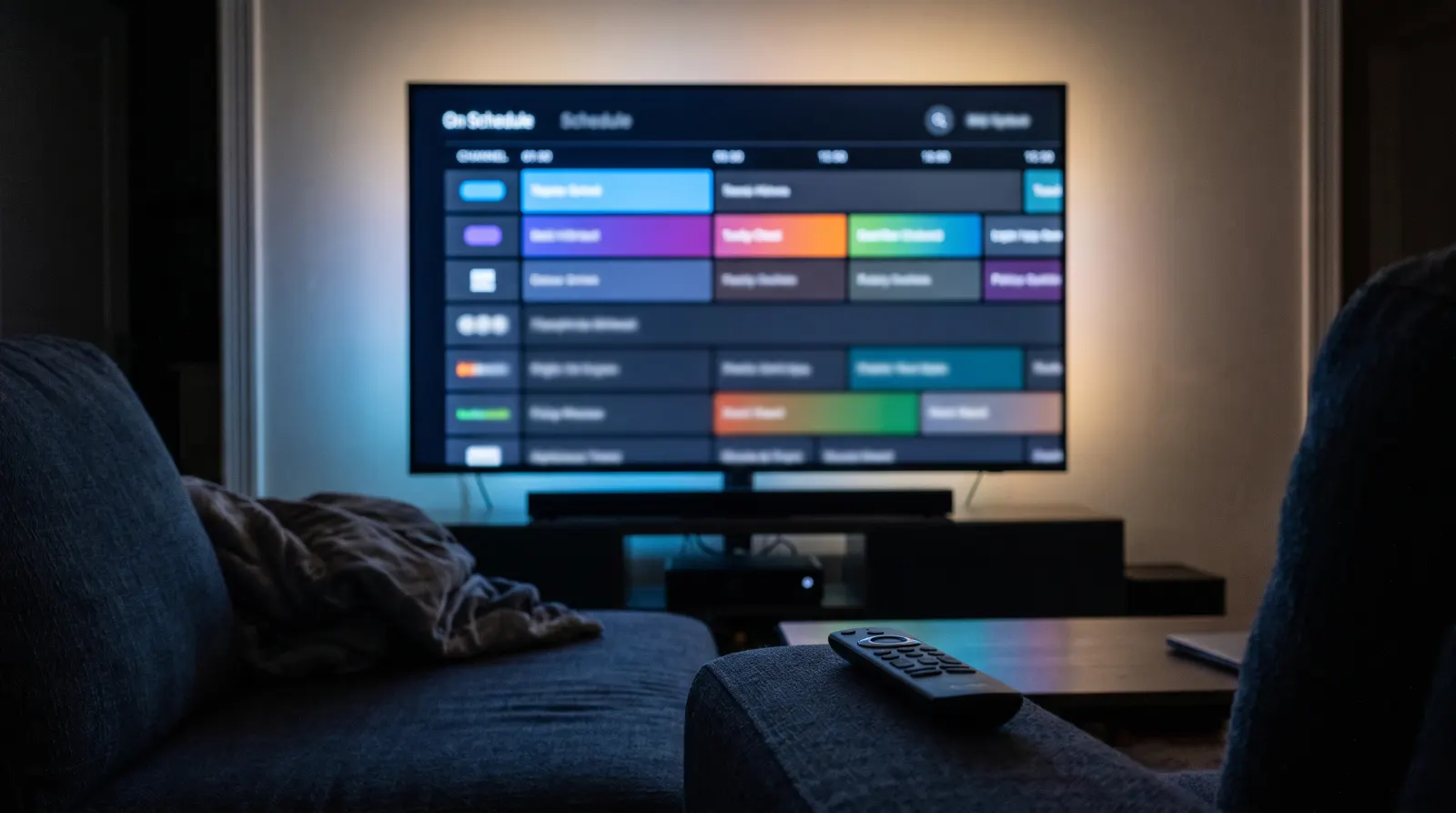
TiviMate is one of the most popular IPTV players for Android TV, Google TV and Fire TV. It looks like a cable box: a full-screen TV guide, channel groups down the side and a picture-in-picture preview. It does not include any channels itself. You add the login details from your trial or plan, and TiviMate turns them into a guide. This guide shows how to install it, sign in, load the guide and fix the problems viewers run into most often.
Which devices can run TiviMate?
TiviMate is built for TV devices with a remote, not for phones. It runs on:
- Android TV and Google TV sets and boxes, including TVs with Google TV built in.
- Fire TV Stick, Fire TV Cube and Fire TV smart TVs.
- Android TV boxes that run the official Android TV system.
It does not run on Samsung or LG smart TVs, Apple TV, iPhone or iPad. On those devices, use the player recommended in our Samsung, LG, Apple TV or iPhone and iPad guides, or IPTV Smarters Pro where it is available.
Install TiviMate
On Google TV and Android TV
- Open the Google Play Store on the TV.
- Search for TiviMate IPTV Player and check the developer name on the listing.
- Select Install, then Open.
On Fire TV
- From the Home screen, open Find, then Search.
- Type TiviMate. If it appears in the Amazon Appstore for your model, install it from there.
- If your Fire TV does not list it, ask us before installing anything from another source. Our Fire TV guide lists the players that install directly on each model.
Only install apps from the official store on your device. Copies offered on download sites can contain changes you do not want on your TV.
Add your login to TiviMate
Open TiviMate and select Add playlist. You will see a choice of login types. Use the one that matches the details we sent you.
Xtream Codes login (recommended)
- Select Xtream Codes.
- Enter the server address exactly as written, including
http://and the port number. - Enter the username and password. They are case-sensitive.
- Select Next. TiviMate checks the login and shows how many channels, movies and series it found.
- Give the playlist a short name, for example “Home TV”, and select Done.
With an Xtream Codes login, the TV guide usually loads automatically, so you do not need a separate guide link.
M3U playlist link
- Select Enter URL and type the M3U link we sent you.
- Select Next and wait for the playlist to load.
- When TiviMate asks for a TV guide source, enter the EPG link if we sent one. Without it, channels play but the guide stays empty.
Type the details with the remote or the on-screen keyboard instead of pasting them from a message. A pasted link often carries a hidden space at the end, which is the most common reason for a failed login.
Let the first load finish
The first time you add a playlist, TiviMate downloads the channel list, the movie and series catalog and several days of guide data. On a typical home connection this takes one to three minutes. Leave the app open and the TV on until the guide fills in. If it stops early, open Settings, then Playlists, select your playlist and choose Update.
Find your channels in the guide
TiviMate opens on the TV guide. Press left on the remote to see channel groups such as US Local, News, Sports and Kids. Select a group to filter the guide, then press OK on a channel to watch it. Press OK again while watching to see the channel list and what is on next.
- Favorites: long-press OK on a channel and choose Add to favorites. Favorites appear as their own group at the top.
- Hide groups you do not use: in Settings, then Playlists, then Manage groups, untick categories you never watch. The guide becomes much easier to scroll.
- Change channel order: in a group, long-press a channel and choose Move to put your local stations first.
Settings worth changing
- Guide time zone: Settings, EPG, then time shift. Set it so the guide matches the clock on your TV. If a 7 p.m. show appears at 4 p.m., the time zone is wrong.
- Guide update interval: set the guide to update once a day so listings stay current without slowing the app down.
- Buffer size: under Playback, a larger buffer can smooth out short drops on Wi-Fi at the cost of a slightly slower channel change.
- Auto frame rate: if sports look jittery, turn on the frame-rate matching option in Playback so the TV switches to the stream’s frame rate.
- Parental control: lock groups with a PIN if children use the TV.
Free version or TiviMate Premium?
TiviMate has a free version and a paid Premium upgrade sold by the app developer. The free version plays live channels with the guide. Premium unlocks extras such as several playlists, favorites management, recording and catch-up controls, and customizing the guide. The upgrade is bought through the developer’s companion app on an Android phone and is separate from your IPTV plan. Try the free version during your free 24-hour trial before deciding whether you need Premium.
One playlist on several TVs
You can add the same login to TiviMate on every TV in the house. Your plan still decides how many can play at the same time: with a one-screen plan, only one TV can watch at once. If two people watch different TVs in the evening, choose a two-screen plan. The multiple devices guide explains how to check this.
Catch-up and recordings
If your plan includes catch-up for a channel, TiviMate marks past programs in the guide with a small icon. Select a program that has already aired and choose Play to watch it from the start. How far back you can go depends on the channel. Recording, where available, needs TiviMate Premium and a storage location: on a Fire TV or Android box with little free space, choose a USB drive in Settings, then Recording, before you schedule anything.
Keep TiviMate running smoothly
- Update the app from the store when an update appears. Player updates often fix playback and guide problems.
- Restart the device once a week. Streaming sticks run for weeks without a restart, and a fresh start clears memory that the player needs for live TV.
- Clear the guide cache in Settings, then EPG, if listings stop matching after a time change such as daylight saving time.
- Free up storage by removing apps you no longer use. A full stick slows the guide down.
Remote shortcuts worth knowing
- OK while watching: opens the channel list without leaving the picture.
- Left: shows channel groups. Right: shows the program details.
- Long-press OK: opens the menu for favorites, moving channels and hiding a channel.
- Back twice: returns to the full TV guide.
Fixing common TiviMate problems
“Login failed” or “Wrong username or password”
Re-type the server address, username and password by hand. Check the port number and that you chose Xtream Codes, not M3U. If it still fails, send us a photo of the error screen.
The guide is empty
Open Settings, then Playlists, and update the playlist. With an M3U link, check that the EPG link is added. Then set the guide time zone.
A channel buffers in the evening
Increase the buffer size, then test the same channel on a wired connection if you can. Note the station name and time and send them to us: one slow channel is something we can check.
Channels play but there is no sound
In Playback settings, switch the audio output option, or turn off audio passthrough if your TV is connected to a soundbar.
TiviMate questions
Does TiviMate include channels?
No. TiviMate is only a player. You add the login from your IPTV plan or trial and it shows those channels.
Can I use TiviMate on a Samsung or LG TV?
No. TiviMate runs on Android TV, Google TV and Fire TV devices. Samsung and LG TVs need a different player.
Do I need TiviMate Premium?
Not to watch live TV with the guide. Premium adds extras such as multiple playlists and recording. Test the free version first.
Should I use Xtream Codes or M3U in TiviMate?
Xtream Codes, when you have it. It loads the guide automatically and is easier to update.
Next step
No login yet? Start a free 24-hour trial and set up TiviMate with this guide. Already set up? Take the trial checklist to the TV and test your stations during prime time.